
Yes. Claude in Chrome is a browser extension from Anthropic that lets Claude read, click, type, and navigate websites in your own Chrome, with your own logins. You give it a task, it works in a separate tab group, and it pauses to ask you before anything risky. I use it for the browser work I used to do by hand while I am on a call or inside an ad account.
The problem
Most of my day is not strategy. It is clicking. Requesting indexing in Search Console. Submitting a sitemap to Bing. Pulling a client's Google Business Profile details. Checking which pages a competitor just published. None of it is hard, all of it is slow, and it does not get done while I am in a client's ad account.
I resisted handing a browser to an AI for a while. It is a strange feeling the first time you watch a cursor move on your own screen without you. Here is the honest version: it is a little scary for about ten minutes. Then you realize you just got back the part of your day that was clicking, and you start handing it more. My own read, not a measured number, is that it has roughly 10x'd what I get through in a working day. Do the first task with your hands near the keyboard. After that you will not want to go back.
What you need
- Google Chrome on a desktop. Other Chromium browsers and phones are not supported.
- A paid Claude plan (Pro, Max, Team, or Enterprise). On Enterprise, an admin has to turn it on.
- The Claude Desktop app, if you want to send tasks from Cowork or Claude Code instead of the Chrome side panel.
Step by step
1. Install the extension. Open Chrome, go to the Chrome Web Store, search for Claude, and click Add to Chrome. Sign in with your Claude account when it asks.
2. Pin it. Click the puzzle-piece icon in the Chrome toolbar, then the thumbtack next to Claude. You want the icon visible so you can open the side panel in one click.
3. Accept the permissions. The one that matters is called "debugger." That is what lets Claude actually click and type. Anthropic publishes a plain-English table of every permission and why it is needed; read it once so nothing surprises you later.
4. Connect it to the desktop app (optional but worth it). In the Claude Desktop app: click your initials in the lower left, then Settings, then Customize, then Connectors. Find Claude in Chrome, click Configure, toggle it on. It is off by default in each new conversation, so turn it on in the Connectors dropdown when you want a chat to use your browser.
5. Give it a boring task first. Not your bank, not a client's ad account. Something like: "Open Search Console for 412freelancers.com and request indexing for these three URLs." Watch it work. Notice that it opens its own tab group so you can tell its tabs from yours, and that it stops and asks before it submits anything.
6. Learn where it pauses. The side panel starts in "Automatically approve" mode. Claude works continuously, checks each action, and asks you when something needs sign-off: sending a message, submitting a form, anything that cannot be undone. You can change the mode and it remembers your choice.
7. Keep Chrome open and walk away. Claude keeps working while you are in another tab or another app, as long as Chrome stays open. Turn on notifications so it can ping you when it finishes or needs a decision.
8. Save the prompts that work. Once a task runs clean, save the prompt as a shortcut. Type "/" in the chat to pull it up next time. On the classic side panel you can also schedule shortcuts to run daily or weekly.
A real example, start to finish
This is the task that produced the screenshots below. I had just published this post and the one before it. I was in the Claude Desktop app with the Chrome connector on, and I typed:
Can you index those pages. Take screenshots of you doing it.
That is the whole prompt. No URLs, no instructions on where to click. Claude already knew the new URLs because it had just deployed them, and it knows how Search Console works. Here is what it did, in order, with the screenshots it took along the way.
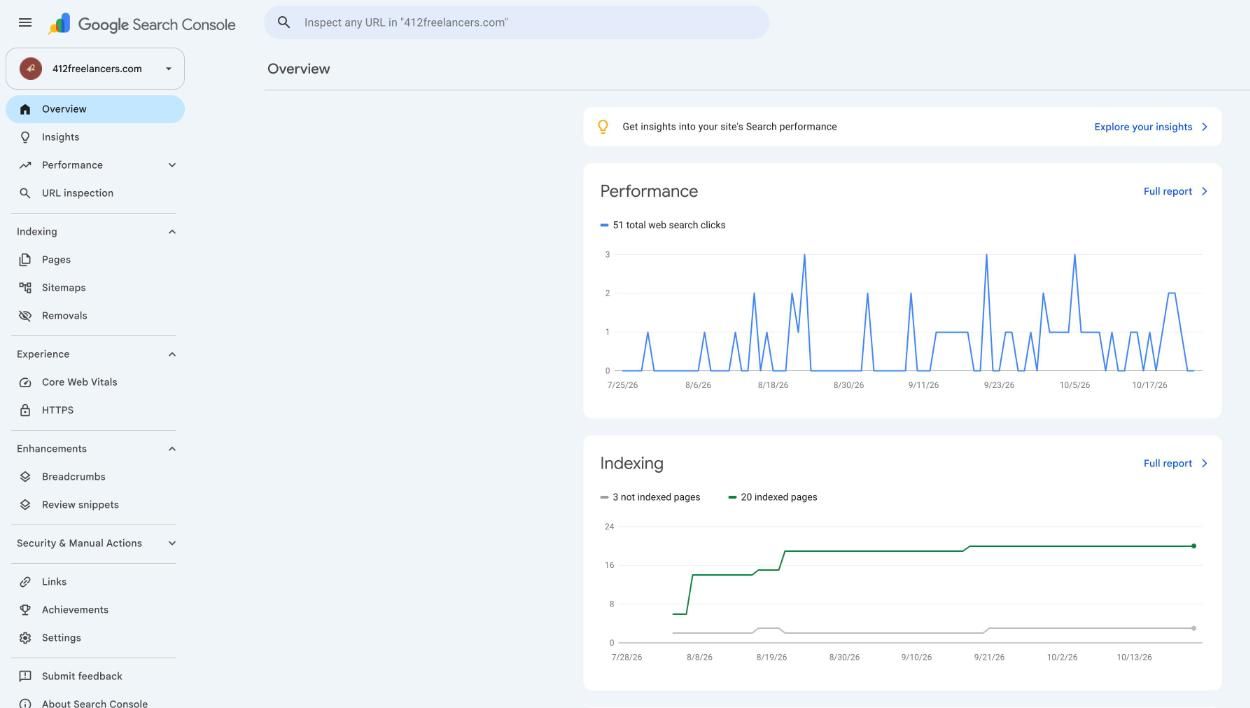
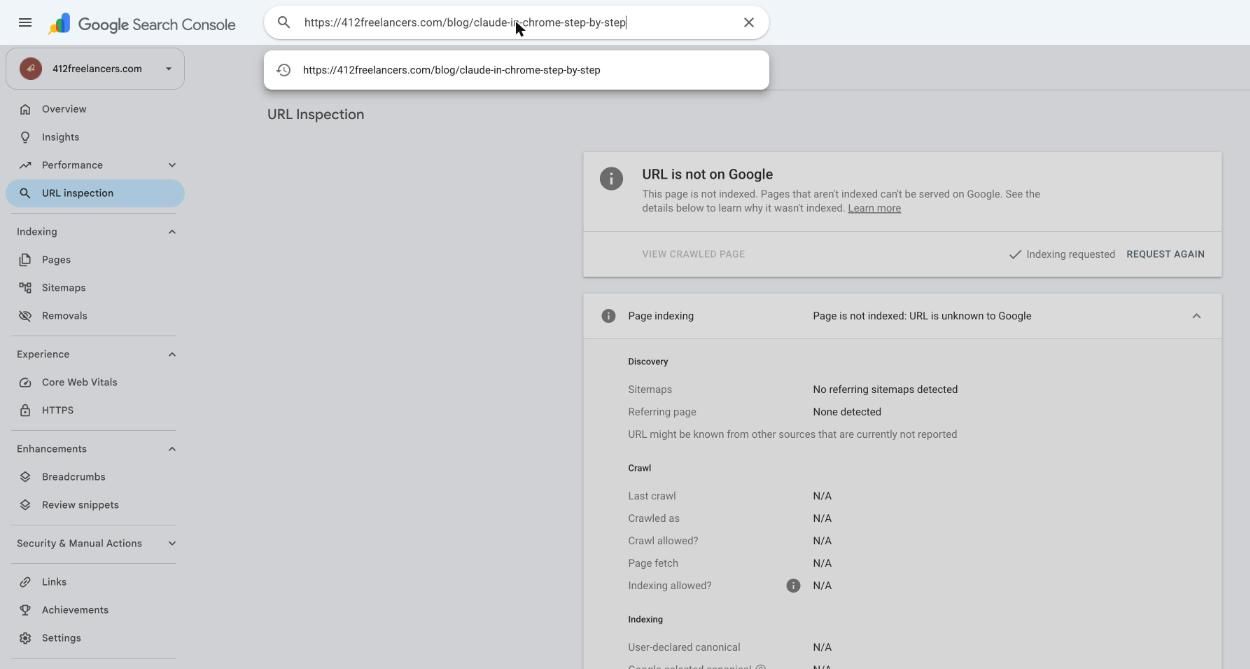
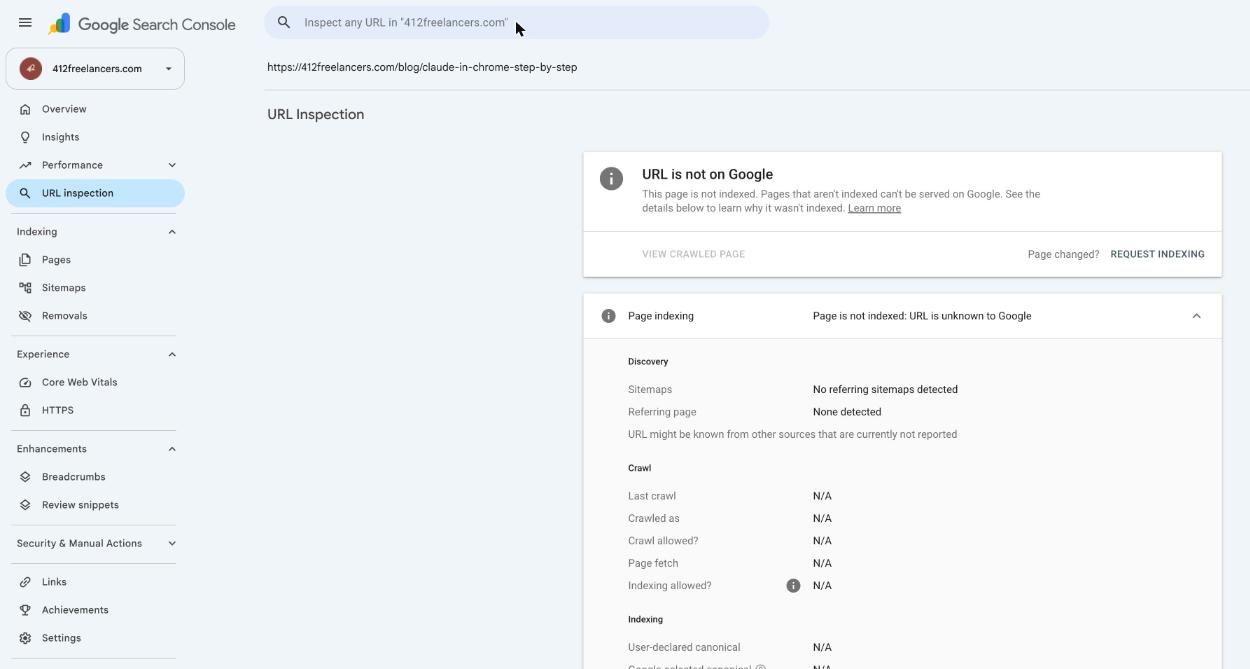
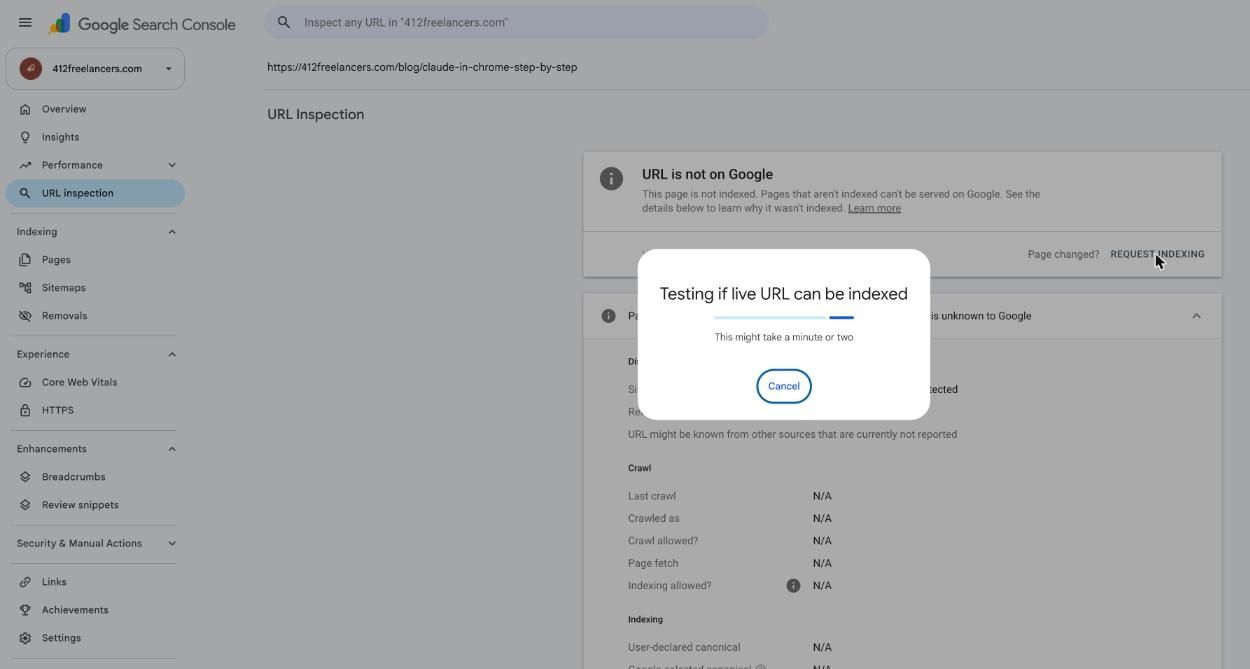
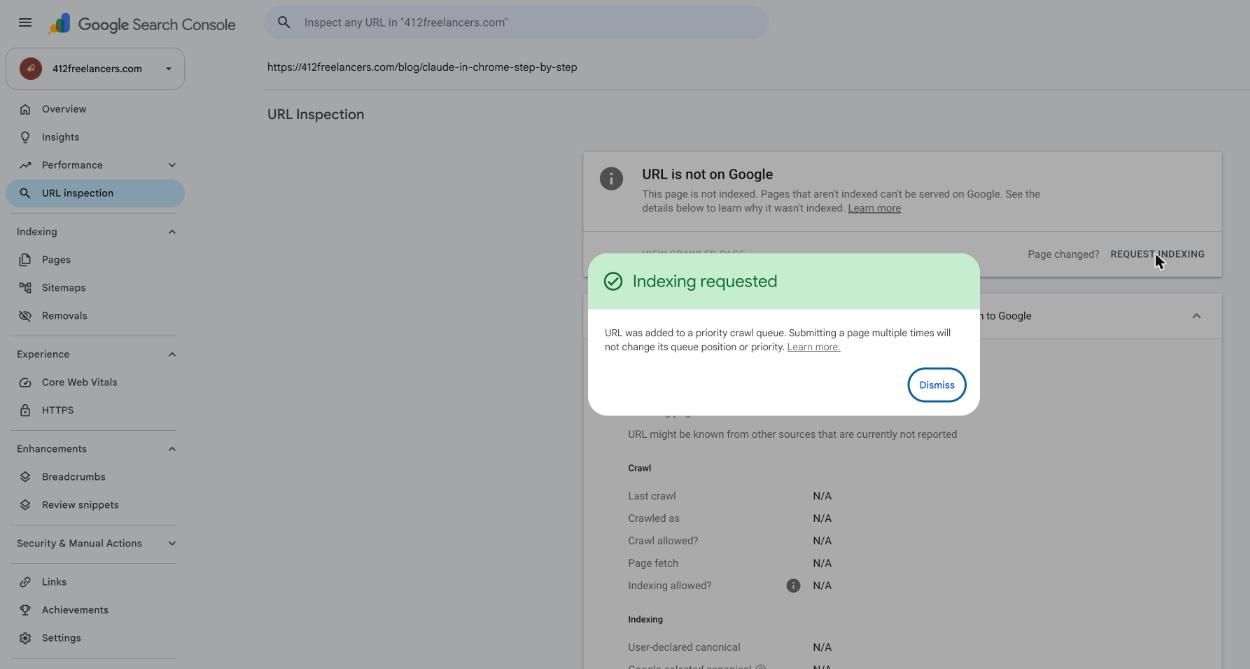
Total time on my side: the ten seconds it took to type the prompt. I was reading something else while it ran. That is the whole pitch.
What I hand it
Real tasks from the last few weeks, so you can calibrate:
- Request indexing for new pages in Google Search Console.
- Submit a sitemap and verify a site in Bing Webmaster Tools.
- Read a Google Business Profile and tell me what is missing.
- Check a new page after deploy: open it, confirm the structured data and the booking button work, report back.
What I do not hand it
- Logging in. I sign in myself, then hand over the task. (There is a 1Password integration in beta on macOS that fills credentials without Claude ever seeing them, if you want to go that far.)
- Anything that moves money. It will refuse those anyway.
- Anything where a wrong click costs more than the ten minutes it saves. Client ad accounts, for now, are still my hands.
Anthropic is clear that this is still risky and publishes a safety guide. Read it. Then do the first boring task and see what the rest of your afternoon looks like.